
How to use a live world clock for international scheduling
The world, on time.
One missed hour can wreck a meeting. If you work across time zones, you already know the feeling.
A live world clock fixes most of it. It shows the current time in several cities at once, updates in real time, and handles daylight saving in the background. Get it set up properly and you stop doing time maths in your head at 7am.
This guide covers the features that matter, the mistakes that catch people out, and a quick setup that takes about five minutes.
What to look for in a live world clock
Not every world clock does the same job. Some focus on accuracy down to the second. Others show a world map with day and night shaded in. A few let you line up cities side by side to spot overlapping work hours.
For scheduling, you want three things working together:
- Multiple cities visible at once
- Automatic daylight saving adjustments
- A clear way to compare working hours across zones
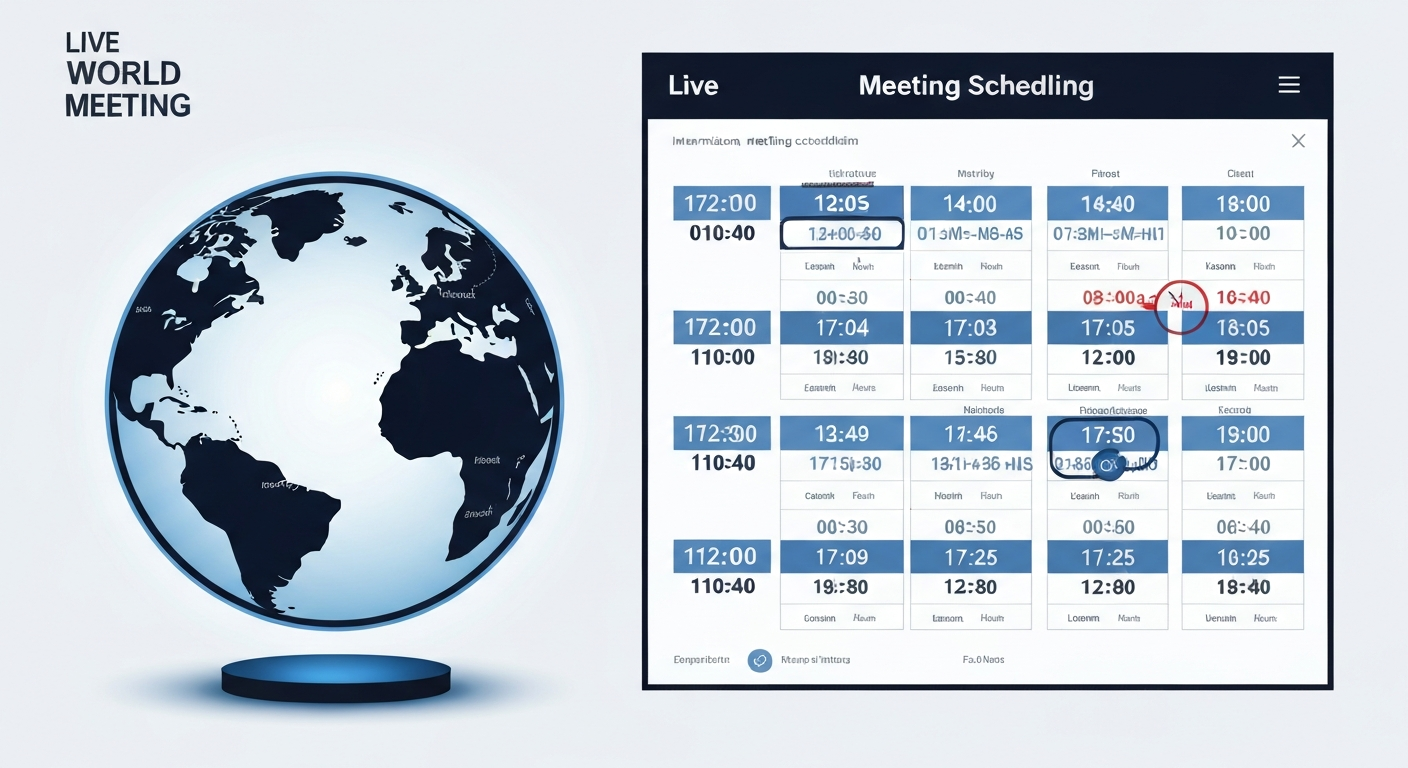
A meeting planner sits at the heart of this. Without one, you are back to mental maths and Googling "what time is 3pm London in Sydney." With one, you pick your cities and the overlap shows up on screen.
Why daylight saving will trip you up
Daylight saving causes more scheduling mistakes than any other factor. London moves to BST (UTC+1) on the last Sunday of March. It drops back to GMT on the last Sunday of October. The US, EU, and Australia all shift on different dates. Some countries do not shift at all.
If your world clock does not handle this automatically, you will eventually invite someone an hour early or late. Almost guaranteed.
A good tool shows whether DST is currently active and tells you when the next change happens. Easy World Clock keeps a running daylight saving time page with the dates for every region.
Picking your core cities
Start with a short list. Your own location, plus the cities you work with most often. Three to five is usually enough. Any more and the view gets cluttered.
If you schedule with the same handful of places every week, save them. Typing "Singapore" into a search bar every Monday morning gets old.
Common combinations:
- London, New York, San Francisco for transatlantic teams
- London, Mumbai, Singapore for UK to Asia work
- Sydney, Tokyo, San Francisco for Pacific coverage
- Berlin, Dubai, Hong Kong for European to Middle East business
You can build any of these in the Easy World Clock city clocks view and pin the page in your browser.
How to plan a meeting across three time zones
Here is the process for setting up a call between, say, London, New York, and Sydney.
- Add all three cities to your world clock view.
- Find the overlap where everyone is still in normal working hours. For those three, it is a narrow window in the UK morning.
- Pick a time inside that window. Sydney usually loses out because the overlap is late evening for them. Rotate which city carries the awkward hour if you can.
- Send the invite with the time in UTC, or include the local time for each participant. "10am London / 5am New York / 9pm Sydney" removes any guesswork.
The international meeting planner walks you through this. Pick the cities and the meeting length, and it shows the overlap on a grid.
Common mistakes to avoid
A few mistakes come up again and again.
Forgetting DST is changing next week. The clock you check today might be one hour off by Tuesday. Look ahead before you book anything more than a few days out.
Reading 02:00 as 2pm. The 24-hour format catches people out, especially when they are tired. If you prefer 12-hour, set your tool to that and stay consistent.
Picking a country instead of a city. The US, Canada, Russia, Australia, and Brazil all span multiple zones. Sydney, Perth, and Brisbane are on different times for parts of the year. Always pick the specific city.
Trusting a world map for exact times. The shaded day-night view is useful for a quick visual check, but it will not tell you the meeting is at 3:47pm. Cross-check with the numerical time.
Saying "our usual time." Half your team forgot what the usual time is. State the time. State the zone.
How accurate are live world clocks?
Accurate enough for any meeting. Most sync with network time servers, keeping them within a second or two of true atomic time. The lag from your internet connection is usually bigger than any clock drift.
For scheduling, this is fine. You are landing a call when nobody is asleep, not coordinating a rocket launch.
For one-off conversions, use a calculator
Sometimes you do not need a full world clock view. You just want to know what 4pm Toronto is in Paris.
The time difference calculator does this in two clicks. Pick the two cities, pick the time, see the answer.
Useful for things like:
- A client emails you at 6am their time. What time is it for them now?
- You are booking a flight that lands at 8pm local. What time is that back home?
- A friend in Singapore says "call me at 10pm." What time should the alarm be set for?
Embedding a world clock on your site
If you run an internal team site or any page where global time matters, you can embed a live clock straight in. One line of code, and the time updates itself.
Useful for:
- Remote team intranets
- Agency dashboards
- Travel sites
- Customer support pages where opening hours vary by region
You can grab the embed code from Easy World Clock and drop it into any site.
Frequently Asked Questions
Ready to manage time zones better?
Use the International Meeting PlannerRelated Articles
The Ultimate Guide to Managing Time Zones for Remote Teams
Discover practical strategies and tools to keep your globally distributed team in sync without the scheduling headaches.
Best Times to Schedule Global Meetings
Finding a meeting time that works for London, New York, and Tokyo is tough. Here are the best overlapping windows for global teams.